Editing the Basic Image Form
Goodbye Islandora XML Forms ... Hello Drupal Field UI
Those Islandorians that have used (and love) the XML Form Builder will notice a substantial difference in how forms are constructed and how the fields are displayed. The full functionality of the XML Form Builder is not replicated in the 7.x-2.x version of Islandora yet, so help the community with working that out.
Drupal Field UI
To use Islandora-speak the ingest form is now a Drupal content type and a content type is built using Drupal's Field UI. Readers should first review the associated Drupal documentation as it provides a foundational understanding of content types and their fields.
Once you have created content with your content type, it is very difficult to change so planning and modelling your data before hand is important.
Each field has:
- a label
- eg.
DC Title
- eg.
- a machine name
- eg.
field_dc_title - note Drupal powered vs Islandora XML Forms:
- once you have created/defined a field in a content type, you can reuse that field in other content types
- As an example you can create a field for Dublin Core DCMI types and then use that field in any other content type.
- the type of data to be stored
- eg.
Long Text
- eg.
- the widget or form element used to enter/edit the data
- eg.
Text area (multiple rows)
- eg.

Screenshot of Basic Image Fields
Depending on the Widget selected, you will define further properties for the field you've created.
Editing the Basic Image Content Type
Rearranging fields
The Drupal Field UI allows you to easily rearrange fields in the order you wish to present them to the user. In the screenshot above you'll note that I've dragged the DC Title field to the top of the list of fields. Don't forget to Save your changes.
Editing an existing field
As an example if we want to edit the DC Title field, select Edit from the operations column for that field. The Edit tab for the field displays the editable properties including:
- is it a Required Field?
- an option to provide or update Help text for the field to guide user or explain the data entry practice for the field.
- the type of text filter to apply.
- provide a default value for the field
- permissions for the field (who can edit and/or view it)
- rdf mapping for the field
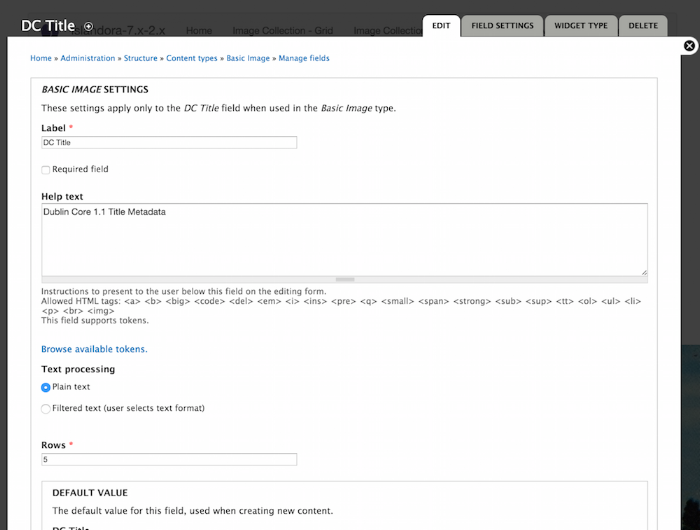
Field Edit Tab
If your field has existing data (eg. you created content using the content type already), then the changes you can apply to the field are somewhat limited.
The Field Settings tab for the DC Title field warns the user that it can't be changed because data already exists in that field. That's why planning your fields and defining their properties is so important.

Field Settings Tab
Depending on the field type selected, different widgets may be displayed.

Field Widget Tab
Adding a new field
Adding a simple select field
One of the ways to improve the user experience, data quality, and faceted displays with forms is to provide select or autocomplete options for your users. As an example, the goal of these steps is to add a select field to your content type.
-
Create a new field called Image Type, with a Field Type of List (Text) and a Widget of Select List.
-
We'll need some terms for our Image Type field. Whenever possible it is best to use a standard vocabulary (and if it is linked data friendly even better). As an example we'll use the Library of Congress' Resource Types vocabulary for Still Image to provide three terms for our select list: Drawing, Photograph, and Print. These are added as key value pairs - eg. Drawing|Drawing.
-
After you've added your terms, you can define other properties of the field like its label, help text, whether it is required or not, etc.
-
TO DO Map to RDF.
-
Move the field to an appropriate location.


Adding a select field using a Drupal taxonomy
To add a select field using a Drupal taxonomy you first need to Add a Drupal Taxonomy. A taxonomy is useful when you have many terms or when you want to provide search/displays based on a controlled vocabulary. The purpose of these steps are to add a new field called DCMI Type that uses a Field Type of Term Reference and that term reference uses a taxonomy, DCMI Type, to provide a list of checkboxes for the user to select. By default Image is checked.
-
Add a new field.
-
Edit field properties - add some help text, since this is the Basic Image content type select StillImage as the default value for the field. The field could potentially have multiple values (eg. Image and StillImage)
-
Select the field widget Check boxes / radio buttons.
-
Save your field.
-
Move it to an appropriate spot in your content type.


